Which type of campaign should you use?
| Campaign type | Who it can reach | What you need |
|---|---|---|
| Template campaign | Any customer who agreed to get WhatsApp messages from you | A template approved by Meta |
| Message campaign | Only customers who messaged you in the last 24 hours | No template: you write the message yourself, with text, images, videos or buttons |
Use a template campaign for offers and announcements, because it can reach all your customers. Use a message campaign for a quick follow-up to customers you are already chatting with.
What do you need before you send a campaign?
- A WhatsApp number connected to ChatFlows.
- Your customers in ChatFlows. Go to Settings → Integrations → Shopify and click Sync contacts to bring in your Shopify customers who have a phone number.
- An approved Marketing template, for a template campaign. A template is a ready-made message that Meta checks and approves before you can send it. See WhatsApp message templates for Shopify.
- Customers who agreed to get messages from you on WhatsApp. Never use bought or copied phone lists: it is the quickest way to get your number blocked.
- Room on your plan. How many campaigns you can send each month depends on your plan: see the plan comparison.
How do you create a WhatsApp campaign in ChatFlows?
Basics
Go to Campaigns and create a new campaign. Enter a Campaign name that only you see, such as "Diwali sale 2026". Choose Template Campaign or Message Campaign, then the WhatsApp number to send from. For a template campaign, also choose the approved template.
Audience
Choose who gets the campaign. Filter your customers by Status, Source, Group or Type, or search by name or phone number. Tick the customers you want, or select everyone in the filtered list at once.
Content
For a template campaign, fill in the template's blanks, such as the offer or the customer's name. If the template has an image at the top, upload it here. For a message campaign, write your message and, if you like, add buttons, a link, an image, a video or a document. Type @ to add details such as the customer's name.
Schedule
Choose Send now, or choose Schedule for later and pick a date and time. Check the timezone in your settings first, so the campaign goes out at the right time.
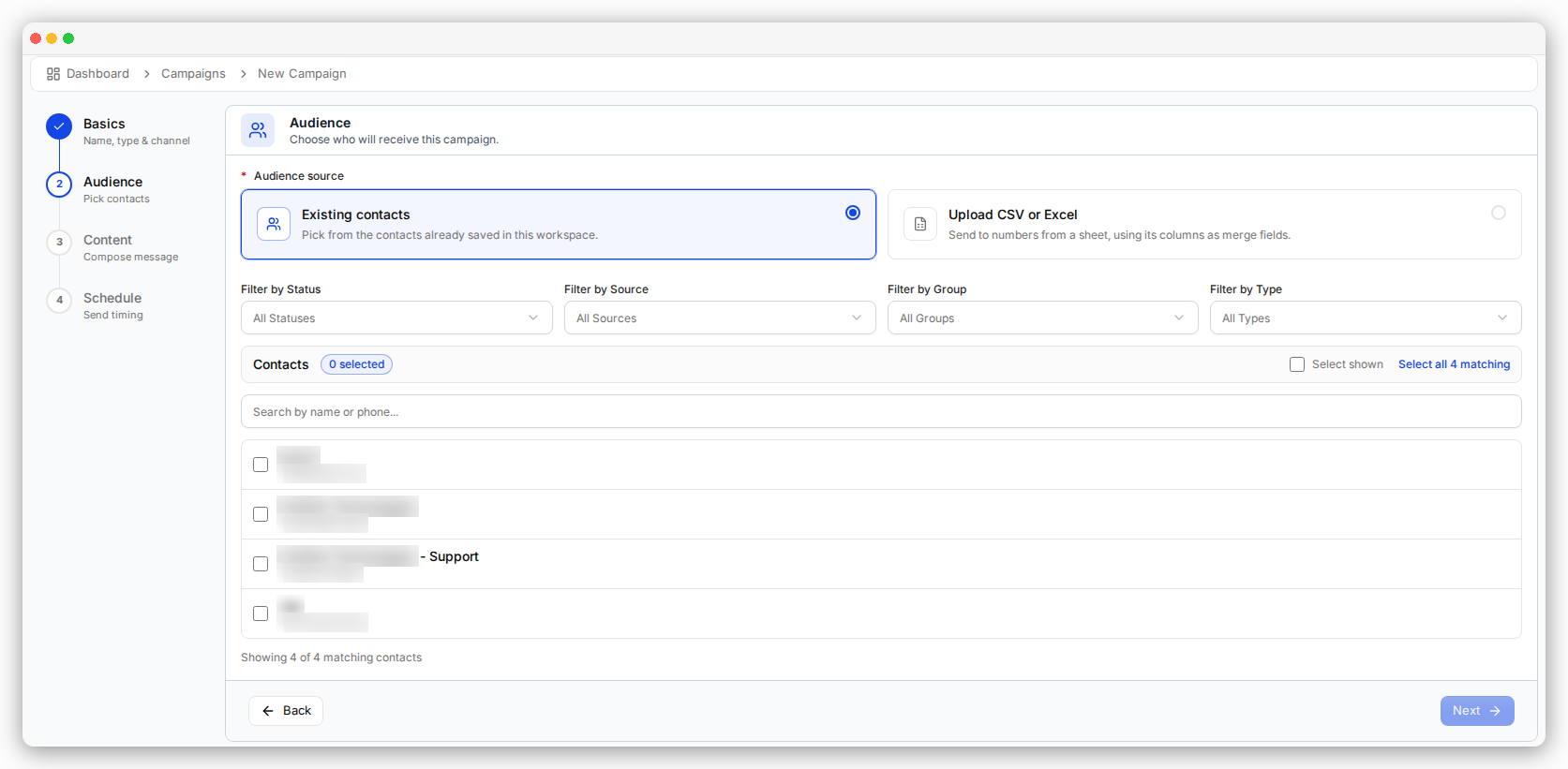
You can also send a campaign to phone numbers from a spreadsheet file (CSV or Excel), instead of your saved customers. Each column in the file, such as a name, can be added to the message. This option is not on every plan, so check the plan comparison.
Who should you send a campaign to?
- Send to customers who know your store and agreed to hear from you, such as people who have bought from you before.
- Use groups to send each offer to the customers it suits, instead of sending everything to everyone.
- If your WhatsApp number is new, start with a smaller group. Meta limits how many different customers you can message first each day, and the limit goes up as customers respond well.
- Keep an eye on your number's quality rating: green, yellow or red. If many people block or report your messages, the rating drops and Meta can limit your sending.
Campaigns are Marketing messages, so Meta charges for each one that is delivered. Sending to the right customers keeps your costs down too. See how much WhatsApp costs for a Shopify store.
What do the campaign statuses mean?
| Status | What it means |
|---|---|
| Draft | Created but not sent yet. You can still edit it. |
| Queued | Scheduled and waiting for its send time. |
| Preparing | Getting the list of customers ready. This only takes a moment. |
| Sending | Messages are going out now. |
| Paused | Sending is on hold. Resume it to continue. |
| Completed | Every recipient has been handled. |
| Failed | The campaign could not run, often because no one in the audience could receive it. |
| Cancelled | You stopped it. Customers who had not been sent the message yet will not get it. |
How do you see your campaign results?
Open a campaign to see its report. It shows how many messages were sent, delivered, not received, read and failed, with a chart and a preview of your message.
- Click Recipients to see each customer's status: Pending, Sent, Delivered, Read, Replied or Failed. For a failed message, you can also see the reason.
- Open the Replied tab and click New Campaign for Replied to send a follow-up only to the customers who replied.
- When the campaign has finished, Resend Failed sends the message again only to the customers who did not get it.
Why did some campaign messages fail?
| Reason shown | What it means | What to do |
|---|---|---|
| Message undeliverable | The number is not on WhatsApp, or the person cannot receive your message | Check the customer's phone number |
| Not delivered to maintain healthy ecosystem engagement | WhatsApp is limiting how many marketing messages this person gets right now | Try again later, and send fewer marketing messages |
| 24-hour window closed | The customer last messaged you more than 24 hours ago, so a message campaign cannot reach them | Use a template campaign instead |
| Recipient not in allowed list | Your WhatsApp number is not fully set up yet (it is still in test mode) | Finish verifying your WhatsApp account |
| Country not allowed | WhatsApp does not allow messages to that customer's country | Nothing can be changed for this customer |
Sources
- Meta: Template categorization, checked November 17, 2026
- Meta: WhatsApp Business Platform pricing, checked November 17, 2026
- Meta: Messaging limits, checked November 17, 2026