Which Shopify events can send a WhatsApp message?
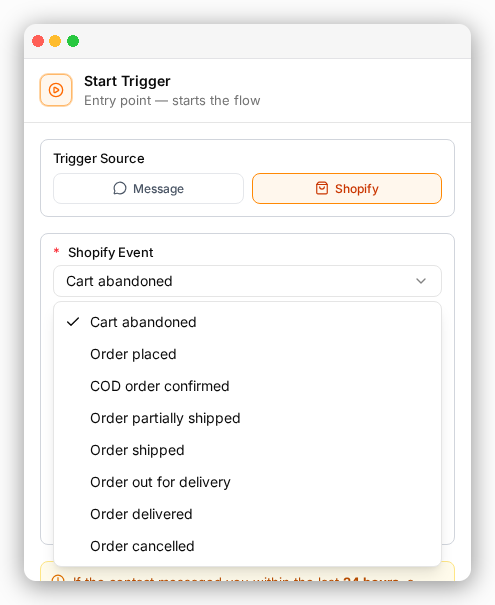
ChatFlows can send a message for eight Shopify events: seven order events, plus Cart abandoned. You pick the event when you set up the automation's trigger.
| Shopify event | When it runs | What it needs |
|---|---|---|
| Cart abandoned | A shopper starts checkout but does not place the order | A phone number at checkout |
| Order placed | A customer places a new order | A phone number on the order |
| COD payment received | A cash-on-delivery order is marked as paid in Shopify | A phone number on the order |
| Order partially shipped | Some of the items in the order have shipped | A phone number on the order |
| Order shipped | All of the items in the order have shipped | A phone number on the order |
| Order out for delivery | The courier will deliver the order today | Tracking updates from your delivery company |
| Order delivered | The order has reached the customer | Tracking updates from your delivery company |
| Order cancelled | The order has been cancelled | A phone number on the order |
Cart abandoned is for reminders to shoppers who did not finish checkout. It works a little differently, so it has its own guide: how to recover abandoned Shopify carts with WhatsApp reminders.
What do you need before you start?
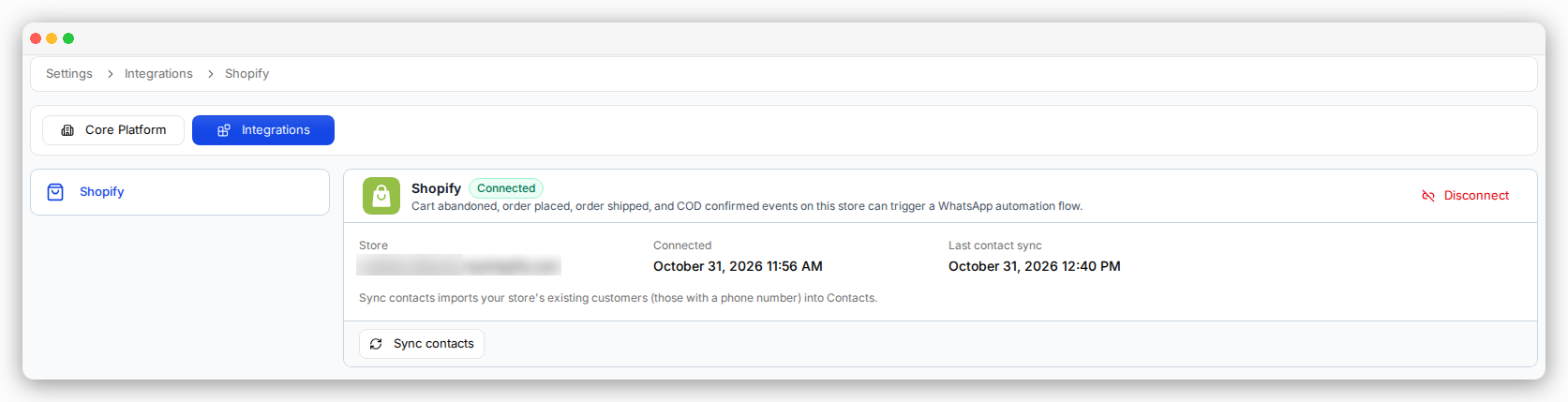
- Your store is connected to ChatFlows. This happens when you install ChatFlows from Shopify. To check, go to Settings → Integrations → Shopify. The card should say Connected.
- A WhatsApp number is connected to ChatFlows.
- Your Shopify checkout asks for a phone number. ChatFlows uses the phone number on the order to reach the customer. Orders without a phone number get no message.
- An approved WhatsApp template for each update. A template is a ready-made message that Meta checks and approves before you can send it. Order updates usually belong in Meta's Utility category. See WhatsApp message templates for Shopify.
- The Delivery updates permission (only for the two delivery events). If ChatFlows shows Delivery updates are off, click Reconnect and approve the permission in Shopify.
How do you set up an order update?
Create an automation
An automation is a set of steps that ChatFlows runs by itself. Go to Automations and click Create Flow. Give it a name, choose your WhatsApp number in Channels, and save. It starts as a Draft, which means it is not running yet.
Choose when it sends
Click Start Trigger, the first box, which decides when the message is sent. Choose Shopify, then choose the event, for example Order shipped.
Add your template
Add a WhatsApp Template step and choose your approved template. The template has blanks for details that change, such as the order number. For each blank (Body variable), type @ and pick the order detail to fill it, such as the order number or the tracking link.
Save and turn it on
Save the automation and set it to Active. From then on, it runs for every order that matches the event.
Create one automation for each event you want to use. For example, to send an order confirmation, a shipping update and a delivery update, you need three automations, each with its own template.
Which order details can you add to the message?
In a blank in your template, type @ to fill it with a detail from the Shopify order: Order Number, Order Date, Order Total, Subtotal, Shipping Price, Total Tax, Currency, Discount Code, Discount Amount, Items Summary, Payment Status, Payment Method, Fulfillment Status, Shipment Status, Tracking Number, Tracking URL, Cart Recovery Link, Shipping City, Shipping Address and Order Note.
Which order updates should you start with?
- Order placed: a confirmation with the order number, the items and the total. It tells customers their order went through.
- Order shipped: the tracking number and tracking link, so customers can follow their parcel without contacting you.
- Order out for delivery: a short message that the parcel arrives today. This only works if your delivery company sends tracking updates to Shopify.
- Order delivered, then a feedback request: create an automation on Order delivered, add a Delay step (for example, 2 days), then add a template that asks how the order went.
- Order cancelled: confirm the cancellation and let the customer know they can reply with any questions.
What happens with cash-on-delivery orders?
Cash-on-delivery (COD) orders get the same order and shipping updates as other orders. The COD payment received event adds one more message, sent when the COD payment is marked as received in Shopify.
What happens when a customer replies to an order update?
- The reply arrives in your shared team inbox, where you can assign it to a person or a team.
- After a customer replies, you can send them normal messages for 24 hours. After that, you need to use an approved template again.
- Quick replies can include order details, so your team can send the tracking link in a couple of clicks.
- If a customer wants to change or cancel their order, your team makes the change in Shopify. ChatFlows does not edit orders.
Why didn't an order update send?
| What you see | Likely reason | What to do |
|---|---|---|
| No message for one order | The order has no phone number | Set your checkout to ask for a phone number |
| No message for any order | The automation is still a Draft, or the template is not approved yet | Set the automation to Active and check the template status |
| No "out for delivery" or "delivered" messages | Orders are marked as shipped by hand, or the delivery company does not send tracking to Shopify | Use a delivery company that sends tracking updates to Shopify |
| "Delivery updates are off" | Your store was connected before ChatFlows asked for this permission | Click Reconnect and approve the permission in Shopify |
| "Recipient not in allowed list" | Your WhatsApp number is not fully set up yet (it is still in test mode) | Finish verifying your WhatsApp account |
To see what each automation has sent, open the WhatsApp automations table on your ChatFlows dashboard. It shows Runs, Sent, Delivered and Read for each order event.
Sources
- Meta: WhatsApp Business Platform pricing, checked November 17, 2026
- Meta: Template categorization, checked November 17, 2026