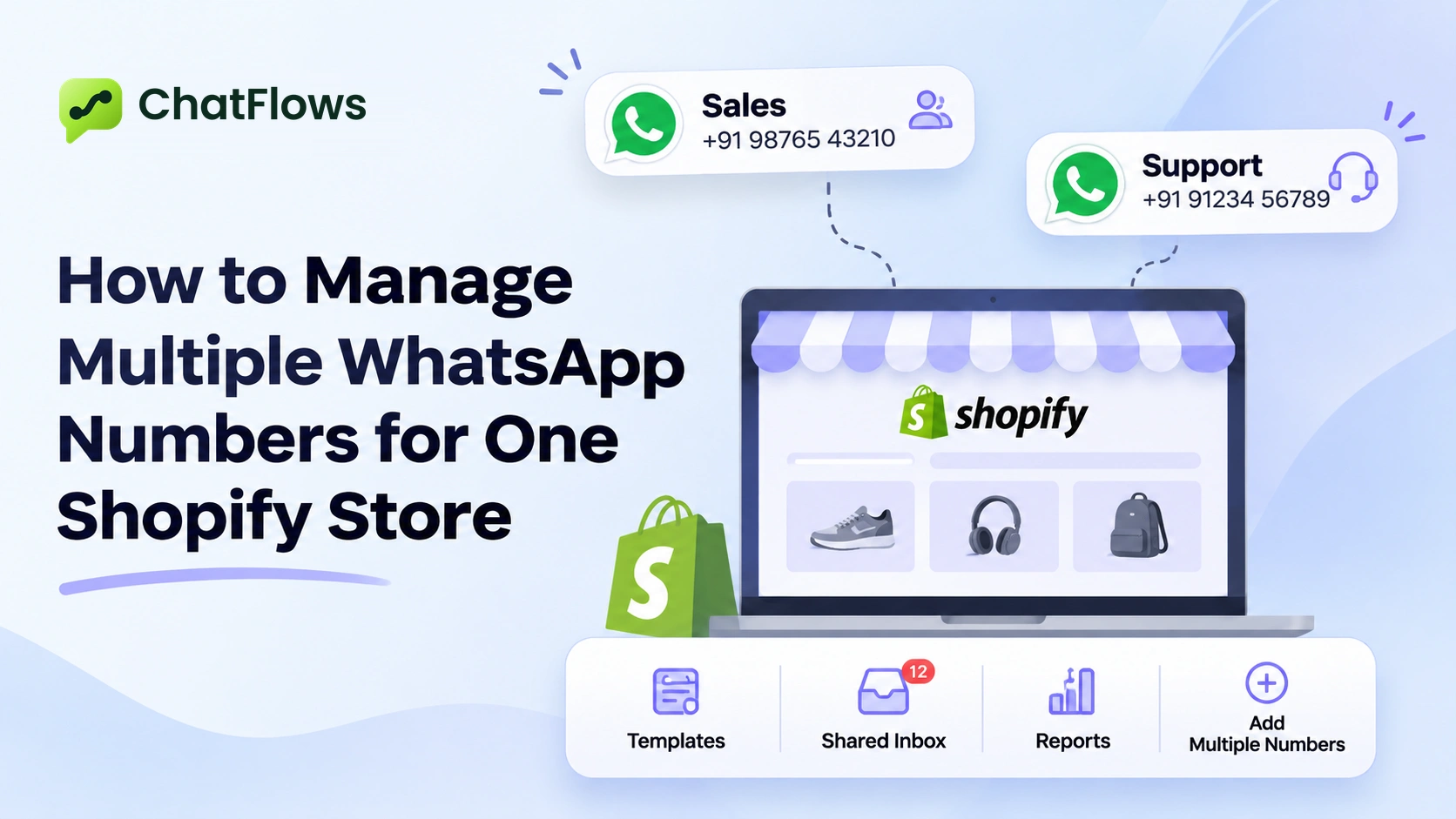
When does a Shopify store need more than one WhatsApp number?
- To keep sales and support apart. Buying questions go to one number, and order problems go to another.
- To have a local number for customers in another country.
- To give wholesale (B2B) buyers their own line, with its own templates and team.
How many WhatsApp numbers can you connect?
It depends on your ChatFlows plan. Each plan lets you connect a certain number of channels. One WhatsApp number is one channel, and one Facebook Messenger page is also one channel. Before you add a new number, open the plan comparison to see how many channels your plan includes.
Meta also has its own limit on how many WhatsApp numbers one business can add. This limit goes up after Meta verifies your business. You can find Meta's latest rules in the sources at the end of this guide.
Do more WhatsApp numbers let you message more customers?
No. Meta limits how many different customers you can message first in any 24-hour period. Replies to customers who wrote to you in the last 24 hours do not count. Since 7 October 2025, Meta sets this limit for your whole Meta business account, and all your numbers share it.
- A second number gives you a second line, not a higher limit.
- Each number still has its own quality rating: green, yellow or red. It is based on how customers react to that number's messages.
- The limit goes up step by step as you send messages customers want, and faster once Meta verifies your business.
What do you need before you connect another number?
- A Facebook account and a Meta business account.
- A phone number that is not used on any WhatsApp account yet. A number already on the WhatsApp Business app also works, and the app can keep working (see below).
- A free channel on your plan. Check the plan comparison if you are not sure.
- Meta business verification (recommended). You can connect a number without it, but your messaging limit stays low until Meta verifies your business.
How do you connect a WhatsApp number to ChatFlows?
Open WhatsApp Setup
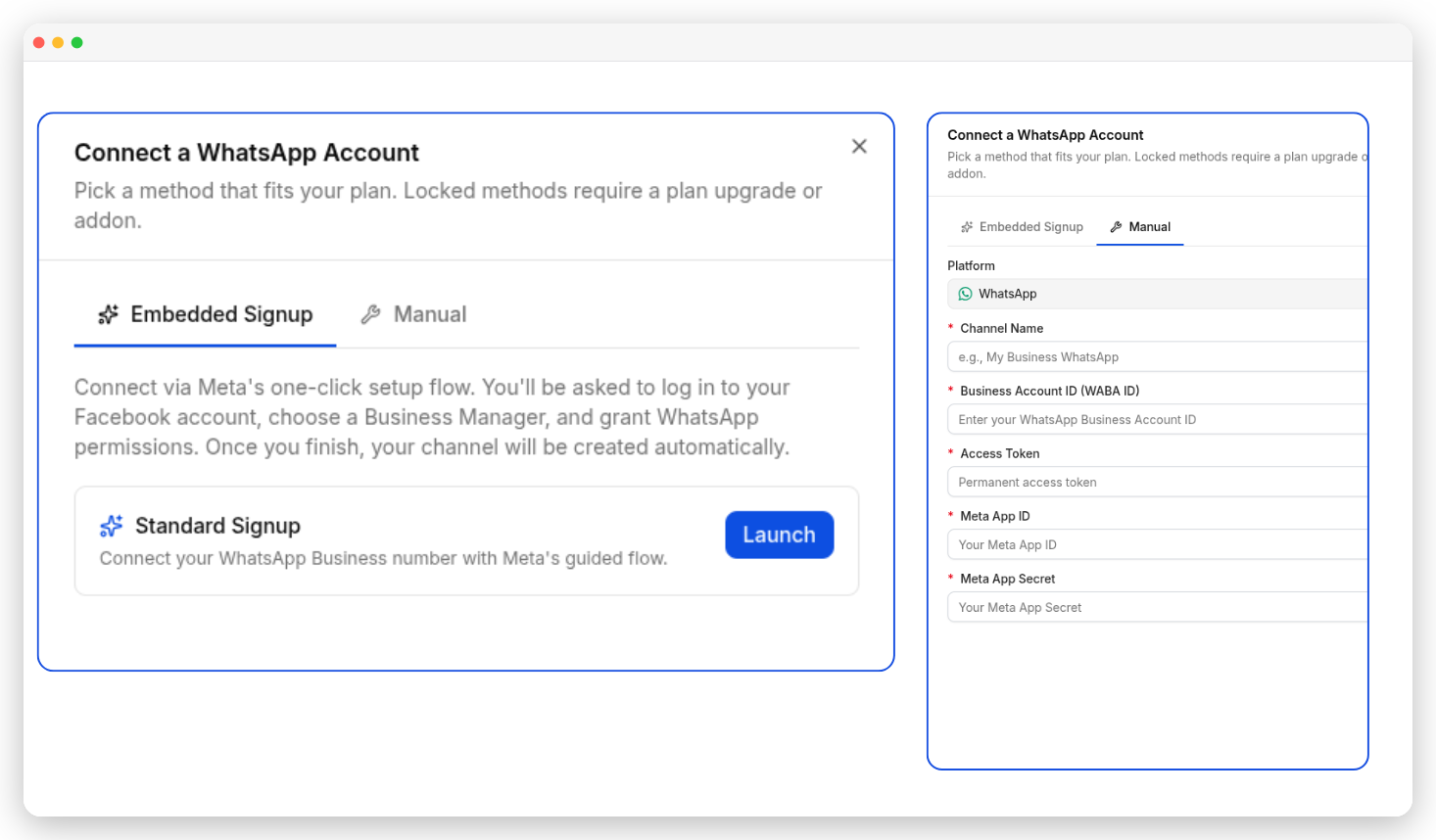
In ChatFlows, go to WhatsApp Setup, click Connect Channel and choose WhatsApp.
Sign in with Meta
This is the quick way. On the Embedded Signup tab, click Launch next to Standard Signup. Sign in with Facebook, choose or create your WhatsApp Business Account and phone number, then confirm. The window closes by itself when it is done.
Or ask a developer
There is also a Manual tab, meant for developers who have built their own setup with Meta. Most stores do not need it. It is not on every plan, so check the plan comparison first.
Check and test it
The number shows as Active in the WhatsApp Setup list. Click Test to send an approved template to your own phone.
Want to keep using the WhatsApp Business app on your phone? Choose Coexistence mode. The app keeps working next to ChatFlows, and your chats and contacts are the same in both.
Why does each number need its own templates?
A template is a ready-made message that Meta must approve before you can send it. Each template belongs to the account you choose in its Channels field, and Meta approves it for that account only. So create the templates that each number needs.
Already made templates in Meta? Click Sync Templates on the WhatsApp Templates page to bring them in. If you have more than one number, you can sync all of them at once (Sync all accounts) or just one.
How do you choose which number sends a campaign or automation?
- Campaigns: choose the number in the Channel field, in the first step of a new campaign.
- Automations: choose the number in the Channels field when you create the automation. Ready-made flows from the Flow Collection ask which number to use when you copy them.
- Order updates and cart reminders: send each one from just one number, so customers always hear about their order from the same number.
How do you split chats between numbers and teams?
All your numbers share one inbox. Each chat shows the profile photo of the number the customer messaged. To see one number at a time, use the Channel filter above the chat list.
- Create teams, such as Sales and Support, and assign each chat to a team or a person.
- Team members who are not owners or admins see only the chats assigned to them or to their team.
- An automation on your support number can add a label or group to new chats, so your team can find them quickly.
What if a customer messages two of your numbers?
- One customer can be linked to more than one of your WhatsApp numbers.
- If the same customer was saved twice, merge the two records on the Customers page.
- If a customer replies STOP to one number, they stop getting marketing messages from all your numbers.
How do you check how each number is doing?
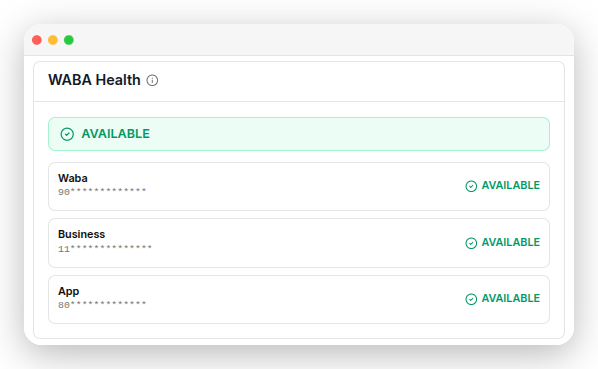
- WABA health, on the number's page, shows whether each number is in good standing with Meta. (WABA is short for WhatsApp Business Account.)
- Reports has an Account selector, so you can see Meta charges and template results for each number.
- The Channels panel on your dashboard shows how many messages each number sent and received.
Sources
- Meta: Business phone numbers, checked November 17, 2026
- Meta: Messaging limits, checked November 17, 2026